We arrive at the local Carrefour with a USB key, a document to print for the next day, and we come across a kiosk with a screen displaying three different menus. The smart move is to prepare your file even before leaving home. The success of a self-service print at Carrefour depends less on the machine than on what you send to it.
File formats and resolution: what really blocks the kiosk
Most failures at an in-store kiosk come from the file, not the hardware. A PDF generated from a word processor almost always goes through without issue. On the other hand, a Word file with custom fonts or a PowerPoint containing animations is likely to produce a misaligned result, with replaced characters or a broken layout.
For photos, the JPEG format remains the most reliable. Very large PNG files or RAW formats are generally not supported by self-service kiosks. You save time by converting everything to PDF or JPEG before leaving.
Resolution also matters. A document intended for printing must have a minimum resolution suitable for paper printing, much higher than what you see on the screen. A blurry image on a computer screen will be even blurrier once printed. Checking the print preview on your own device avoids unpleasant surprises on-site.
When preparing for self-service document printing at Carrefour, the most effective method is to store your files on a USB key formatted in FAT32, as some kiosks do not read exFAT format or multiple partitions.
Color or black and white printing: decide based on the document
The instinct is often to print everything in color. At a self-service kiosk, black and white printing costs significantly less than color. For a CV or an administrative form, black and white is more than sufficient.
Color is justified for visual materials: photos, presentation graphics, invitation cards. The color output at a large retail kiosk remains acceptable for everyday use, but one should not expect the quality of a professional printer. Color shades may vary from one kiosk to another depending on the state of the cartridges and the type of paper loaded.
When to prefer a printer over a kiosk
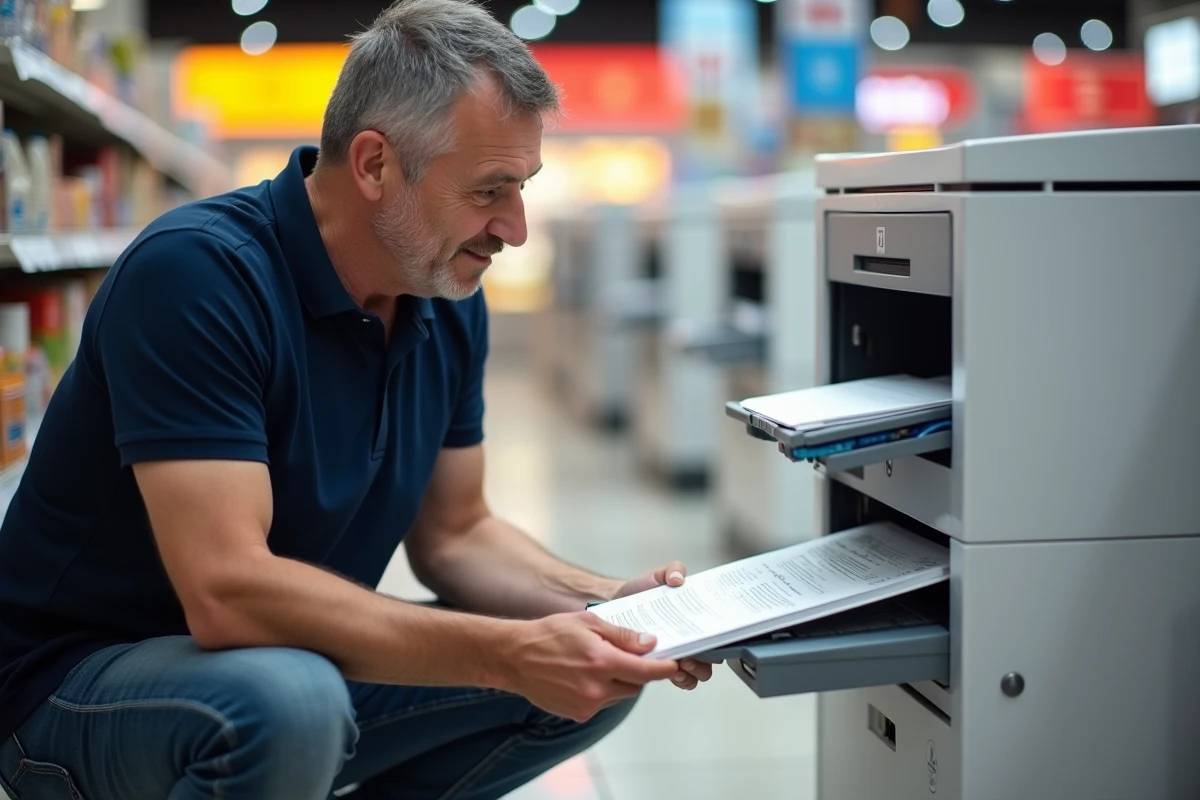
If the document requires precise color fidelity (a photo book, a corporate communication material with a strict graphic charter), the self-service kiosk is not the right tool. Feedback on this point varies by store, but generally, the kiosk is suitable for quick fixes and standard prints, not for professional quality work.
Concrete steps at the Carrefour kiosk
The in-store process is quite straightforward, but a few details change the experience.
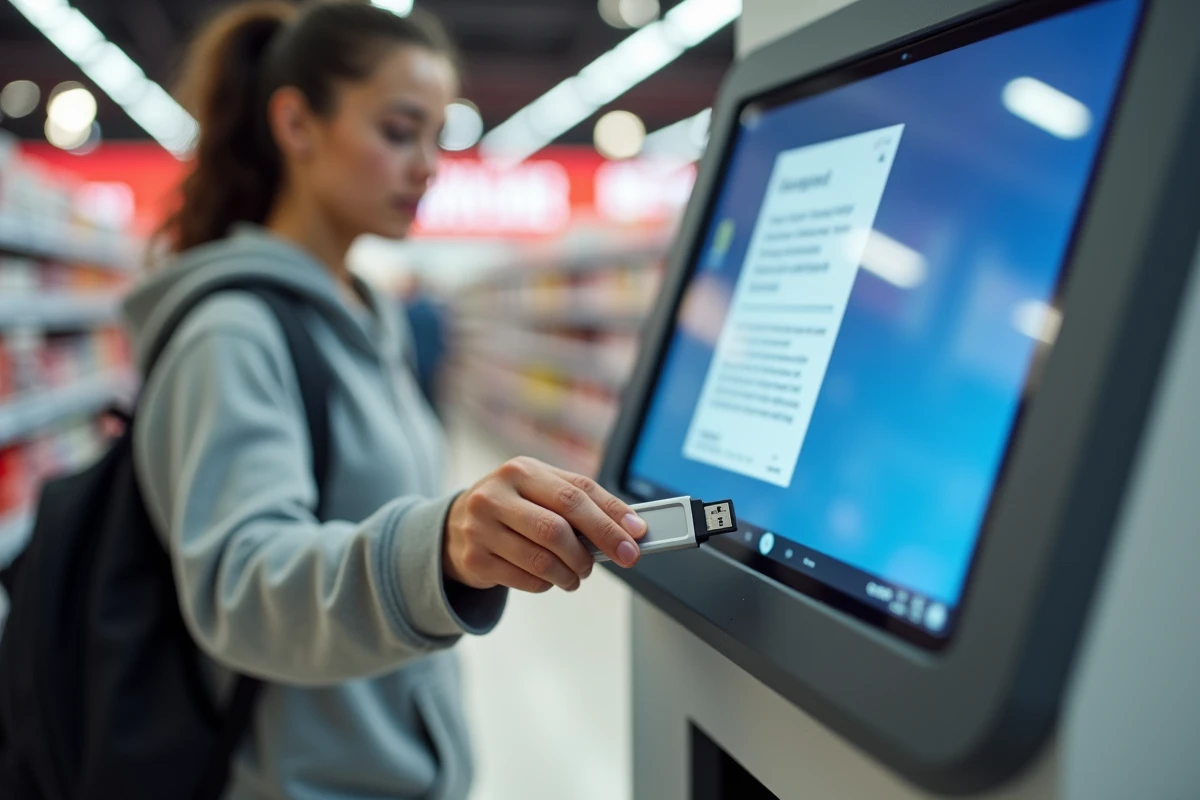
- Insert the USB key into the designated port (usually on the side or front of the kiosk), then select the file to print on the touchscreen.
- Choose the format (A4 most often, sometimes A3 depending on the kiosks), the color or black and white mode, and the number of copies.
- Check the preview displayed on the screen before confirming. This is the last chance to spot a misaligned frame or a missing page.
- Pay directly at the kiosk, often by credit card or coins, then collect the prints from the output tray.
A detail that is often forgotten: remove your USB key before leaving the kiosk. It seems obvious, but the number of keys left behind in stores is significant.
Complementary supports and services in-store
Some Carrefour kiosks also offer copying and scanning, not just printing from a file. You can digitize a paper document and retrieve it on your USB key, which is handy when you need to send a proof of identity by email and don’t have a scanner at home.
The Copy ME service, rolled out notably in Belgium, combines printing, copying, and scanning in one space. The principle remains the same: you serve yourself while shopping, without an appointment.
What the kiosk does not do
Self-service kiosks do not handle large format printing (posters, architectural plans). They also do not offer binding or finishing (lamination, stapling). For these needs, specialized stores like Bureau Vallée or local printers remain the appropriate solution. Self-service in large retail covers occasional needs, not editorial projects.
Photo printing is sometimes available at dedicated kiosks next to the printing area, but this is a separate service with its own formats and prices.
Tips to save time on-site
Preparing your files in advance makes all the difference. Here’s what helps avoid back-and-forth:
- Rename your files clearly (invoice-january.pdf instead of IMG_20250612.pdf) to find them quickly on the kiosk screen.
- Group all documents in a single folder at the root of the USB key, without nested subfolders.
- Test opening the PDF on a device other than the one that created it, to ensure that the fonts and layout are properly embedded in the file.
A well-named and well-placed file on the key reduces the time spent at the kiosk to just a few minutes. Queues at kiosks mainly form when a user discovers a file issue on-site and has to start over from the beginning.
Self-service printing at Carrefour serves a specific role: to quickly produce a document nearby, without going through a service provider. By preparing the file in the right format and choosing the correct printing mode, you achieve a clean result without wasting time. For anything beyond standard printing, it’s better to turn to a dedicated printing service.